
How to Use Google Maps for Road Trip Planning
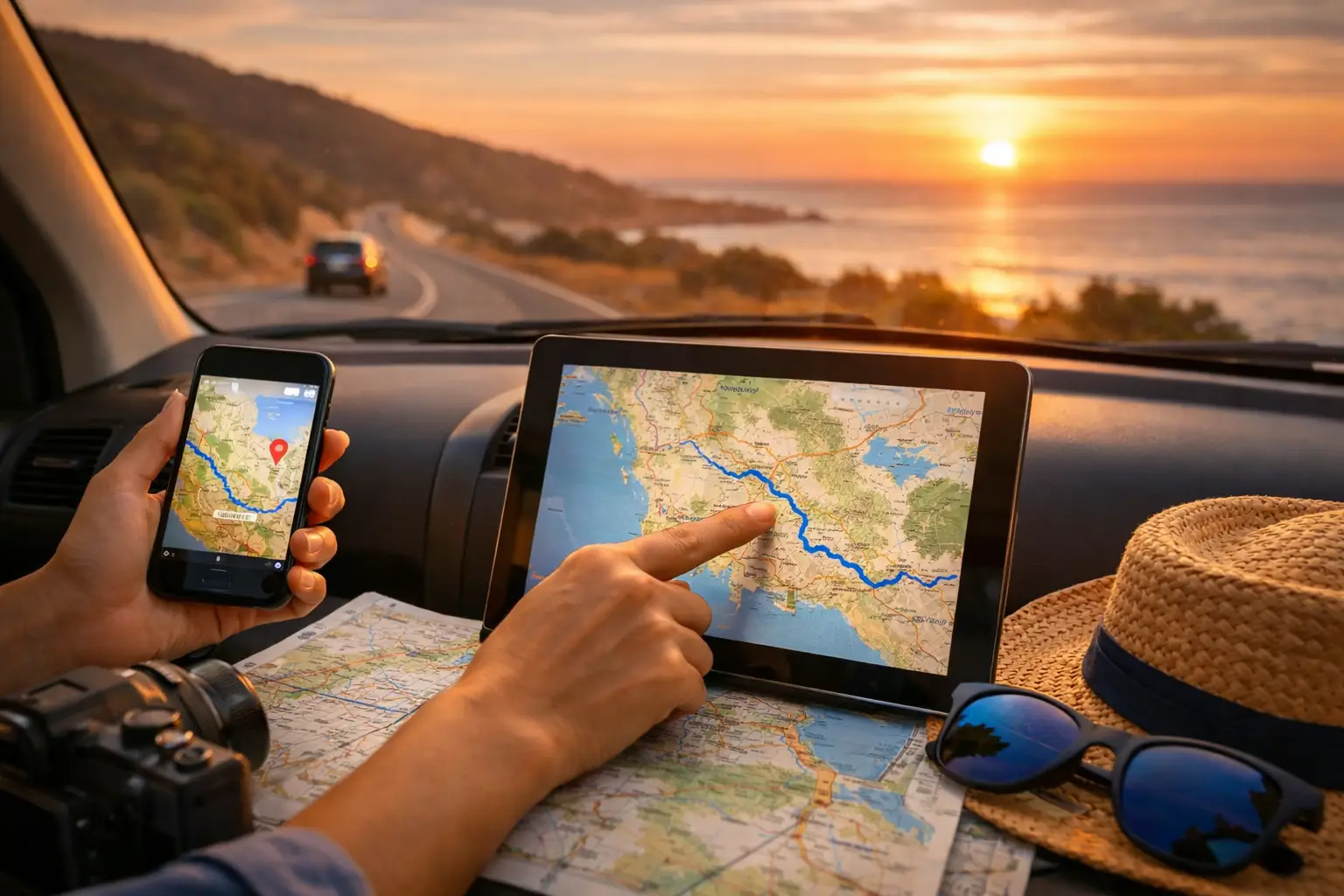
A road trip usually starts well before the key turns in the ignition. It starts when you realise the route that looked simple on paper actually needs fuel stops, overnight breaks, food, detours, and a realistic driving day. If you're wondering how to use Google Maps for road trip planning, the short answer is this: use it to build your route, save key stops, check timing, download offline maps, and pressure-test the plan before you leave.
Quick answer
To use Google Maps for road trip planning, enter your start and end points, add multiple stops, reorder them to shape the route, save important places, check travel times by day and time, and download offline maps for weak-signal areas. It works well for navigation and basic route building, but it is not designed to manage your full trip budget, fuel costs, maintenance schedule, bookings, or shared travel logistics.
How to use Google Maps for road trip planning from the start
Google Maps is strongest when you use it as a route tool, not as your entire trip system. Start with your departure point and final destination, then add the major stops you already know you want. These might be a campsite, a national park, a mate's place, a scenic lookout, or a fuel town you do not want to skip.
Once those stops are in, drag or reorder them to test different route flows. This is where planning gets practical. A route that looks shorter on the screen might be slower in real life if it cuts through traffic, poor roads, or long regional stretches with limited services. Google Maps gives you a fast way to compare options, but it still needs your judgement.
For longer trips, plan in stages instead of trying to build everything in one sitting. Think in daily driving blocks. Four to six hours of driving might be easy in a sedan on sealed roads, but it is a different story in a loaded caravan setup, a campervan in strong crosswinds, or a 4WD on rough regional roads.
Add stops with intention
A common mistake is pinning only the fun parts of the trip. The more useful approach is to add operational stops too. Put in fuel stations for remote sections, supermarkets before camping zones, dump points if you are travelling in an RV, and backup towns in case weather or fatigue changes your plans.
That matters because navigation is only one part of road travel. The best route on a map is not always the best route for your vehicle, your budget, or your energy levels.
Use saved places and lists to keep the trip organised
Saved places are one of the most useful features in Google Maps, especially once a trip gets bigger than a weekend. You can create lists for campsites, food stops, attractions, supplies, and potential overnight stays. This keeps research visible on the map instead of buried in screenshots or random notes on your mobile.
Lists also help when plans shift, which they often do. If one campsite is full or the weather turns, you can quickly scan nearby saved options instead of scrambling on the side of the road.
The limit is that saved lists still do not give you a full operating picture. They show where things are, but not what they cost, whether they are booked, how they affect your daily spend, or whether the route still lines up with your service schedule or fuel range.
Want to track your own trip costs without spreadsheets? Create a free Trip Tracka account and start tracking fuel, food, accommodation, maintenance, create budgets and trip expenses in one place. Start Tracking Free: https://triptracka.com
Check timing properly, not just distance
One of the biggest reasons road trips run off schedule is that people plan by kilometres instead of real driving time. Google Maps helps here because it adjusts estimated times based on road type, traffic patterns, and route conditions. Use the "depart at" feature where available to get a better sense of when a city exit or major corridor will slow you down.
This is especially useful if your trip starts in a capital city and moves into regional areas. Leaving Sydney at 7 am is not the same as leaving at 10 am. Crossing Melbourne before peak hour feels very different from crawling through it with a van and trailer.
Still, the estimate is just that - an estimate. Add a buffer for fuel, food, kids, photo stops, roadworks, and the kind of small delays that happen on every proper road trip. If Google Maps says five and a half hours, plan like it might be seven.
Build around daylight and fatigue
Google Maps can tell you how long the route takes, but it cannot decide what is sensible. If you are driving regional highways with wildlife risk at dawn and dusk, daylight matters. If you are towing, your comfortable average speed matters. If you are travelling with children, rest stops matter more than map efficiency.
That is why good trip planning mixes route data with real-world constraints. The map gives you structure. You provide the judgement.
Download offline maps before you lose signal
If your trip includes inland highways, mountain passes, or remote camping areas, download offline maps before you leave. This is non-negotiable. Signal drops out. Batteries run low. Mobile coverage is never as reliable as you hope once you leave built-up areas.
Offline maps let you keep navigating even when coverage disappears, and they reduce the stress of trying to load directions in a dead zone. Download the areas around your route, not just the exact line of travel. If you need to detour for weather, road closures, or an unplanned overnight stop, extra map coverage helps.
This is also where Google Maps shows one of its trade-offs. It is excellent for quick access and familiar navigation, but it is not your backup system for everything else. It does not replace written booking details, service records, budget tracking, or stored trip notes.
Use Google Maps to research the road, not just follow it
If you want better road trip outcomes, use Google Maps before departure as a research tool. Search along your route for supermarkets, laundromats, public showers, campgrounds, mechanics, pharmacies, and fuel. This is especially helpful on multi-week trips where your operational stops matter just as much as your scenic ones.
Street View can also help more than people expect. You can inspect campground entries, check whether a servo is easy to access with a caravan, or get a feel for urban parking before you arrive. It is not perfect or always current, but it can stop a few bad surprises.
For regional and remote travel, though, you still need to sense-check what you find. Opening hours change. Fuel availability changes. Seasonal closures happen. Google Maps is a strong planning layer, not the final word.
Where Google Maps falls short on bigger trips
Google Maps is great for finding your way. It is not built to manage a full road trip operation. Once you need to track fuel costs, estimate spend by category, log vehicle servicing, compare actual versus planned budget, or coordinate details across a group, the gaps show up quickly.
That is where travellers usually end up back in the same mess they were trying to escape - map app in one place, notes app somewhere else, spreadsheets for costs, booking emails buried in an inbox, and maintenance reminders scribbled in a notebook.
For a weekend away, that might be fine. For an extended lap, overlanding run, or family trip across multiple regions, it becomes hard to control. You can know the route and still have no clear picture of what the trip is costing you.
A smarter workflow for road trip planning
The most practical approach is to use Google Maps for what it does best, then pair it with a system that handles the rest. Build and test the route in Google Maps. Save your stops. Download offline areas. Then move the operational side of the trip into one place where you can track expenses, fuel, accommodation, maintenance, gear and trip notes together.
That is the difference between having directions and actually having control. For travellers doing serious kilometres, control matters. It helps you make better calls on how far to drive, where to stop, what the trip is costing per day, and whether the vehicle is due for attention before the next long leg.
Want to track your own trip costs without spreadsheets? Create a free Trip Tracka account and start tracking fuel, food, accommodation, maintenance, create budgets and trip expenses in one place. Start Tracking Free: https://triptracka.com
Practical tips if you are planning a long drive
If you are using Google Maps for a proper road trip, keep the plan simple enough to adapt. Build around your non-negotiables first, then add optional stops. Save backup fuel and overnight points. Check driving times with buffers. Download maps offline. And do not treat the app's suggested route as gospel if your rig, budget, or comfort level says otherwise.
The best road trip plans are not the most complicated. They are the ones that stay usable when conditions change.
By Craig Watts, founder of Trip Tracka Built by travellers, for travellers - Trip Tracka helps you plan better trips, track costs, organise gear, save stops and keep your travel records in one place.
Built while travelling full-time to help travellers plan trips, track expenses, manage budgets, record fuel, store gear details and keep travel records without spreadsheets.